


Mobile App Development: Choosing Between Native, Web and Cross-Platform
By WNW SEO | 0 CommentsHaving a smart phone without apps is like owning a laptop without any software. You simply can’t make any use of it.No one likes using the browser on their mobile phone – whether its an Android user or an iOS user. So, in order to reach out to your mobile users, you need to reach out to a good mobile app development company.
There are 3 choices in hand to choose from when it comes to mobile app development.
These are native, web and cross-platform apps. All these are different on their own and have their own advantages. Let us know more about these options.Native Apps
As you know majority of smartphones OS market share is dominated by iOS and Android. When a mobile app development company goes with the option to develop an app specifically for a single ecosystem, it is called a native app. This has many benefits like:- Firstly, the performance of the app is smooth, fast and responsive. This provides a great seamless user experience.
- It becomes easier to integrate with all different devices of the same ecosystem.
- The User interfaces will integrate with the OS giving it a clean unified experienced across devices and different OS versions.
- It becomes easier for your apps to get discovered in the native app store be it the Google Play store or iOS app store.
Cross-Platform Apps
Globally, there are almost 3 billion smartphones being used by people worldwide. Android is the dominant OS with having a market share of almost 85% and IOS 14%. This makes it pretty clear that in order to succeed, you need to have your app available on bothiOS and Android app stores. A cross-platform app is an app that has been developed to run both on Android and iOS operating software. This can be done by sharing some of the codes of the app across platforms. Cross-platform apps provide benefits like:- It is easier and faster to create as almost 80% of the same code can be used.
- The UI and UX can be similar to the native app, giving a unified design across different platforms.
- You still need to write some codes to complete the app for a different platform.
- The performance might not be as good as the native app as it won’t take full advantage of the native OS feature.
Web App
A web app is developed using HTML5 and JavaScript. These are then wrapped in an invisible native WebView Container. This kind of app is basically a webpage turned in to a mobile app. It is very easy to develop and faster than other two options. However, it provides poor UI and is less efficient without regular issues. So, a mobile app development company should opt for this option only when the budget is very low or very short on time.On a Final Note
A mobile app development company can go with either of these options, but in order to succeed and provide the best services to its customers native apps should be the option to go with. Incase you are a little low on budget and have time constraints, then you should go for cross platform apps. MORE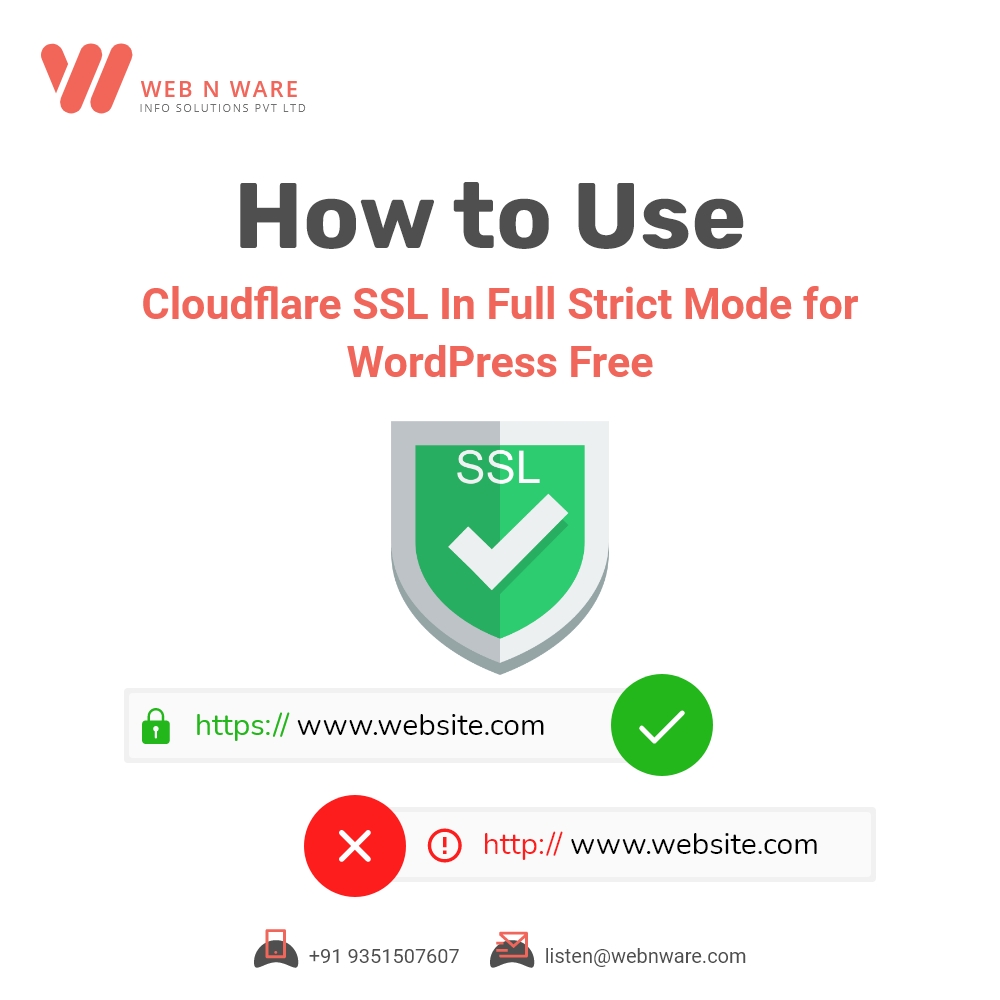
How to Use Cloudflare SSL in Full Strict Mode for WordPress Free?
By WNW SEO | 0 CommentsWe all know how important it is for any website to have an SSL (Secure Socket Layer) certificate. Usually, it comes at an extra cost. However, if you get it from Cloudflare, you can have it for free too. Let’s see how. Cloudflare has many packages to offer. The free plan is actually meant for personal blogs and websites. However, there’s a hack to use it for your website too. This is exactly what we’ll be exploring here.
Step 1: Add Your Domain
Go to Cloudflare and add your website here. Select the free plan when prompted.Step 2: Update Your Server Name
This step may not apply to everyone. When you add your website to Cloudflare, it reviews your existing DNS records. If your hosting provider is different, you’ll have to replace the DNS with Cloudflare. Just follow the instructions you get, till you get a final confirmation that your site is now under the protection of Cloudflare.Step 3: Collect your Cloudflare Origin Certificate
Go to the SSL/TLS section now in order to collect your certificate. The default option you’ll get here is to allow Cloudflare to generate RSA private key and a CSR. Proceed with it and collect your certificate. You’ll have to save the details on Notepad before you move to the next step.Step 4: Upload the Certificate on Your Website
Now, you open the C-panel of your website, go to Security and click on the SSL/TLS button. Here, you go to Certificates (CRT) to upload the origin certificate you collected in the previous step. You’ll be asked to copy-paste the details. Save it once you’ve pasted them properly.Step 5: Upload the Private Key
Once your certificate has been saved, you come back to the original options and click on Private keys (KEY) this time. Copy-paste the details that you collected from Cloudflare in your Notepad file and save it.Step 6: Final Installation of Certificate
After your private key is saved, you return to the SSL Manager once again. Now, you hit the option “Install and Manage SSL for your site (HTTPS)”. Click on the button that says “Browse Certificate” and choose the domain for which you just uploaded your certificate. As soon as you do that, you find the certificate you just uploaded and click on “Use Certificate”.Step 7: Install the WordPress Plugin Really Simple SSL
From the main C-panel of the website, you go to the plugin section and install Really Simple SSL. This plugin helps to activate the SSL certificate you just uploaded on the site.Step 8: Change the Mode to Full Strict
You need to ensure that your SSL/TLS encryption mode is Full Strict. You’ll probably get some issues so you need to hit on the button “Reload over https” above. This will log you out of the dashboard. Log in once again and go to the notification you receive to migrate to SSL. You’ll also have to enable 301 .htaccess redirect in the settings and save it.Step 9: Install Better Search Replace Plugin
This plugin will help you update your URL from “http” to “https”. Select all the tables, uncheck on case-sensitive, check on “Replace GUIDs?” and uncheck “Run as dry run?”.Step 10: Enable it from Cloudflare
You go to Cloudflare again and check on the options “Always use HTTPS” and “Automatic HTTPS Rewrites”.These 10 steps are very simple to follow as it only requires you to click a few buttons. Within a few minutes, you get a free SSL certificate for your website for a lifetime! Also Read- REACT NATIVE VS NATIVE: WHAT’S BETTER FOR NATIVE MOBILE DEVELOPMENTMORE